Showing posts with label technology. Show all posts

Saturday, 16 January 2010

One year without TV - Part One


In just a couple of weeks time, it will have been a year since my wife and I last received any kind of TV broadcast into our home. We don't even own a TV since we moved to Canada.

That's not to say we don't watch TV shows, news and movies, it's just that we've been using different technologies to do it. In this first post I will explore why we did it,  how we made the transition away from broadcast TV, and what technologies we found to be useful. In part two I'll look back at our experiences and assess the pros and cons of not having a TV, and discuss where this might lead, for us and for society as a whole. If you'd prefer a shorter version of this post, you can head on over to my posterous blog.

Watching TV at a time that you choose

So, why did we make the switch? One of the biggest reasons was time pressure. It's an inescapable truth that we are all much busier than we were 20 years ago, in the days when there were fewer TV channels than fingers on your hand. We have gone through a lifestyle revolution where an almost infinite numbers of online and offline activities are available to fill up our time.

When it comes to TV, it's no longer practical to watch a show at the time when it's on, at least not if you want to catch every episode. And who has time to mess around with videotapes? (or these days, DVD recorders)

The solution that presented itself was PVRs (Personal Video Recorders), which allow you to automatically record all episodes of a series by the push of a button, and watch them back in your own time. You can also pause, rewind and fast forward through ads. Being in the UK, Tivo was not an option, but we were still able to get on the PVR bandwagon. We had Sky+ for a couple of years, and then V+, which worked quite well for us. And once you've had a PVR, you'll never want to go back to normal TV (sounds like a line from a commercial, but it's true).

The burdens of PVRs

But we found that having Sky+/V+ presented new problems. This was the first time we'd had digital TV or cable/satellite TV too, and it meant an increase from 5 channels to around 300 channels. This was not a good thing. More channels meant more shows that looked interesting, and more choices about what to watch. More choice is not a good thing. We found that we were accumulating shows we wanted to watch faster than we could watch them, and were having to spend time deciding which shows to delete, or copying recordings off to DVD. What was supposed to bring us more entertainment was becoming a chore.

What's more, at that time it was more or less impossible to have PVR technology without paying an expensively monthly contract (usually higher than a standard non-PVR subscription). Now, you can get PVR boxes that work with Freeview or Freesat - meaning no monthly fee. This would be a slightly better option - but I would anticipate an excess of content still being a problem.

Airdates and TV downloading

The other thing that was happening around the same time was that we were getting into more and more American shows - such as Lost, Heroes, Jericho, 24 and Enterprise. Typically these shows air weeks to months earlier in the USA than in the UK. And in the case of Lost, we found ourselves unable to watch it legally without switching provider when Sky One and Virgin Media fell out over licensing (see right). And there was no legal way to obtain any of these shows when they first came out. So we began to download shows as .avi files from the Internet - typically using torrent sites such as isohunt and the Pirate Bay. This meant we could get the shows we wanted as soon as they came out, while everyone else is still talking about them, and best of all, with no adverts.

Now of course these files are natively viewed on a computer, not a television, which was ok on my widescreen monitor, but not ideal. Computers typically aren't set up with a nearby couch or armchair for viewing. So we started to look at media players - put simply, a box that sits under your TV and lets you watch computer media files from its own hard drive or from your home network.

Media Players

Our first media player was a modded XBox games console (modding is a legal process which involves adding a chip to the console so it can run any software, and installing a new software interface). We used the very impressive XBMC (XBox Media Centre) software, which lets you run XBox games from hard disk, run emulators, stream internet radio, watch movie trailers, and play any music or video files from an internal hard drive or your network. XBMC remains one of the best interfaces out there, with beautifully designed screens, easy to use and highly functional. It pulls in movie & TV thumbnails and info from the internet automatically.

We found it was a very powerful way to watch downloaded episodes on our TV - by simply sharing the torrent download directory over the network, browsing the directory on the XBox, and clicking the file. We now had all the PVR like features (pause, rewind/fast-forward, watch when you like) for our media files.

NAS (Network Attached Storage) and Digital Downsizing

We continued using this system in parallel with our PVR, and accumulated more and more media files of TV shows and movies. We realised we needed to have a single machine to store all our files, accessible over the network, so we began to construct an Ubuntu Linux computer into which we could put lots of hard drives to store our media. This had some limited success, but I don't get on with Linux configuration, and it just became too much work.

Fortunately, I discovered FreeNAS, a Linux-like operating system pre-configured for exactly this purpose, sharing files over a network (known as network attached storage). There are more expensive options available, but FreeNAS can run from a USB key stuck into any old PC you have lying around - and can be easily configured with no command-line stuff from a powerful web interface. It was just the job, and worked beautifully. Soon we were buying 750Gb and 1Tb hard drives (surprisingly cheaply) to store our media files.

By now it was early 2009, and we were making plans to emigrate to Canada. We realised that taking our huge collection of both bought and recorded DVDs and CDs was not an option, and that we could digitize all our music and movies onto the NAS hard drives - and take those hard drives with us to Canada. Mrs Alex did all the hard work, and we soon had eight hard drives full of media to take to Canada.

Soon after getting to Canada, we acquired an old PC cheaply, and installed FreeNAS again, to make a new NAS server, which I affectionately call Tardis, giving us access to all our old files.

A 21st century living room

As we set up home in Canada, we thought hard about how to lay out our living room. We realised that we spend a lot of our time on our laptops, and that having a TV in lounge makes the room very TV centric. My monitor was able to function as a "TV screen" for media playback from the NAS, swivelled round to face the sofa when needed as a TV, and swivelled back to the desk when needed by my Mac. And so we were able to layout our living room without a TV. Looking back, I guess this was the moment we decided not to have broadcast TV any more.

I can't describe how much nicer it is to not have a TV in your lounge. By default, you sit down and do other things - whereas in most lounges when you have a big TV screen in front of you, the room almost invites you to turn it on.

The Popcorn Hour, HD, and Video Projectors

And so we enjoyed this set up for the first six months of our "year without TV"... downloading new shows and watching films from our collection via the NAS and my computer monitor. But by now, some of the shows we watched were also available in high definition, which couldn't really be played back on my 1680x1050 monitor. And I was aware that audio-wise, our system was not ideal (we were just using my computer speakers). We started to wonder about the possibility of setting up a home cinema.

I'd been thinking for some time about getting a better media player. We'd left the XBox in the UK, being too heavy to transport, and using my computer to play shows was a little annoying. The media player market is still in its infancy, but there are many many choices available. There's MythTV (too much Linux configuration for my liking), Windows Media Center (not so great at playing back some video formats, plus, it's by Microsoft), Apple TV (but you can only play shows and movies bought from Apple), and many more. Ultimately the device we settled on is a Popcorn Hour (also known as a Networked Media Tank).

The Popcorn Hour is a tiny box (not much bigger than a hard drive) that plugs into a TV or projector to stream media from your network. It has some of the best support for different video formats - including our digitized VOB files (DVDs) and FLAC files (Audio CDs). What's more it is capable of HD output and optical audio out. I also like it because you're not running a noisy PC, it's quiet and very low power consumption. From a technical point of view it's hard to beat. My lovely wife bought me one for my birthday.

It does have some disadvantages, it's interface is much more primitive than the likes of XBMC, and not very usable for music files. You can install better interfaces, but this involves a lot of work labelling your files in special ways and generating custom menus. Unfortunately the device is not as powerful as a PC, and it shows. But I can live with that, for what it does. Functionality is more important than ease-of-use (much though it pains me as a user-centric designer to say that!)

In August, we moved to a bigger place with 2 living rooms, and setting up a Popcorn Hour-powered became a real possibility. Our friend Eric very kindly lent us an HD-capable projector, and we put up a shelf and drilled a hole through the wall so that we could have our NAS server in the spare room but the Popcorn Hour and projector in our lounge. We painted the walls white to give us a better surface to project onto, and before long it was all systems go. We were even able to hook up our Wii to the projector as well.

This is a great set up, we're now able to watch our movies projected onto the wall, and when you watch HD films you can see every detail. We've been enjoying this set up for the last 6 months - downloading new shows like Dollhouse, Doctor Who and ReGenesis as well as our old favourites like Lost and Heroes.

Watching TV online, proxies and protected content

Beyond downloading, there's another way to watch TV online, that we've dabbled in but not fully explored, and that's watching TV streamed over the Internet. Probably the best example in the world is the BBC's iPlayer, which allows you to watch BBC shows soon after broadcast, streamed over the Internet. Unfortunately, because the BBC is funded by UK licence payers, the service checks what country you are accessing the site from and blocks you if you are not in the UK (as do the UK's other online TV services - 4od, demandfive, ITV Player, MSN Video Player, and Zattoo.)

Similar geo-IP technology is used in the USA to restrict access to Hulu and ABC, and is also used for audio services such as Pandora (US) and Spotify (UK).

As a UK citizen living abroad this is very frustrating. I would be happy to continue to pay my license fee while abroad in exchange for officially supported access to BBC content. Unfortunately the legal and technical systems in place do not allow this.

But fortunately there is a workaround - to use a proxy server. A proxy server is a computer in the country you want to pretend to be in, that relays your connections, fooling sites like iPlayer into believing you are in that country. We've started to use a service called Flote, which for 9.99GBP a month, gives access to US, UK, Canadian and Dutch proxies, enabling access to almost all of the services listed above. Proxies are legal, but something of a loophole at the moment. If you'd like to learn more about proxies, there's a good description in this episode of the excellent CBC Spark podcast.

The proxy service means I can watch UK shows like Doctor Who even while out of the country, but in practice I mostly download the torrent files unless I am away from home. This may be partly because I haven't found a good solution to get Internet streams onto the projector (One option might be a Slingbox, but they're not cheap).

Life without a TV

So this brings me up to the present - you can see how we got here, and hopefully you learnt a thing or two along the way about what options might be available to you. If you're thinking of breaking free of broadcast TV you may also want to take a look at Jeff MacArthur's decabled.com.

In the next post I will tell you about what the experience has been like for us, the pros and cons, and where this might all lead.

Thanks for reading!


Read more...

Thursday, 10 December 2009

Amazing stop motion video mashup - thanks to the BBC

The BBC has just done something revolutionary... they've released all the source footage for an as yet unscreened documentary about the way technology is changing our lives, and are inviting the public to compete and edit/mashup the footage into something unique. Above is an inspiring example of what's possible, by Barry Pilling. Here's another by Cassetteboy.
The idea of allowing your work to be edited and improved by others was first encouraged by the Creative Commons. If you don't already, make sure any photos you share on Flickr are released under Creative Commons, so others can do great things with them (without profiting or taking credit).
Another film in this vein that's well worth a look is RIP: A Remix Manifesto, the story of Girl Talk's rise to fame as a musician who plays no instrument but uses samples of others' music. It too is freely editable and mash-up-able. There's also a growing craze for "fake trailers", the most famous being Shining. It's so much easier these days now that people have a publishing house, editing studio and photo lab on their desktops. Exciting times!

Posted via web from Bowyer's Bite-size Blogettes


Read more...

Friday, 13 November 2009

Google Maps is losing its marbles

I am not sure what is up with Google Maps this week. Usually its public transport directions are very accurate and incredibly useful. But both Mrs Alex and I have experienced some really weird directions from the site this week.

The first image is one Mrs Alex found, suggesting she walk a massive loop to almost back where she started, to catch a bus to a metro station she would have walked past, which is in the wrong direction anyway!

The second image is one I got when I asked for directions to a location near McGill University. Apparently I should hop on the metro to McGill, then walk all the way back home, and walk back to McGill again.

Crazy! I suspect heads will roll at Google when they notice this regression bug :-)

Posted via email from Bowyer's Bite-size Blogettes


Read more...

Monday, 28 September 2009

What if we didn't need factories any more?

That is the thought-provoking possibility suggested by the RepRap project. RepRap is a simple 3D printer that can make plastic objects to any design, on your desk, using an ordinary PC. It can even make a copy of itself. It's entirely open source and freely distributable.

Ryerson University, the University of Western Ontario, Rabble and The Tyee have also started a very interesting multimedia project to explore this technology and the effects it will have on society further, called Maker Culture. You can read a good introduction by Wayne MacPhail here.

I am intrigued to see where this might lead. Developments in computing capability and internet technology have given us recording studios, photo labs, broadcasting studios, video editing suites and printing presses from our desktop - and have completely changed those industries as a result.

What changes can we expect in the world's manufacturing industries if goods no longer needed to be manufactured and distributed, but instead you downloaded a design and printed it yourself at home (much like you download an MP3 or movie and burn a CD or DVD now)?

Certainly this is a technology in its infancy, but full of promise. I can't wait to see how this develops.

Posted via web from Bowyer's Bite-size Blogettes


Read more...

Tuesday, 4 August 2009

TARDIS is alive! :-)

Back before we left the UK, Mrs Alex and I (ok she did most of the work) digitized all our CDs and DVDs not to mention paperwork, recipes and all sorts of other documents to reduce the amount we had to take with us to Canada. Given we've also been living here in Canada without a TV for the last six months, we have accumulated plenty more downloaded movies & TV shows. We brought about 8 hard drives with us to Canada and our FreeNAS install media, and after 2 case upgrades, 2 additional green 1 Terabyte hard drives, 2 new 4 port PCI SATA cards and a beefier PSU, not to mention much consolidation of data from smaller, older IDE drives, I am pleased to announce our behemoth of a fileserver is alive.. Just short of 6 Terabytes of storage for our viewing and data storage pleasure! Hurrah! Now to get my Popcorn Hour media player which Alex bought me for my birthday working.. and then it's HD projector time (which is handy as we have just painted the walls in the lounge of our new apartment white which is just the right colour for projecting onto)...

Posted via email from Bowyer's Bite-size Blogettes


Read more...

Thursday, 29 January 2009

Digital Downsizing

Maybe space really is the final frontier!


Uploaded to Flickr by Prashant Wosti
It's a liberating experience to sort all your worldly possessions out ready to emigrate. I can now say that I've looked at every single thing I've accumulated over my life (and believe me that's a lot!) and decided whether to bin it, box it up to store, or take it with me to Canada (in the suitcase or by shipping it). A lot of it has been about trying to downsize, trying to get rid of things, sell them or give them away. Strangely, the value of our possessions has changed for us now - it's much more about size, than cost. If something is big or bulky, it's far more likely we'll get rid of it - because storage space is limited and the amount we can take is limited. So anything that's small can be kept more easily. And if there's any way to make things smaller, we'll jump at the chance.

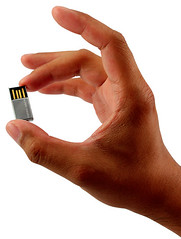
So what's the smallest thing of all? Data. I can fit 8 Gig of data on a USB key on my keyring... and I can buy one terabyte of storage, taking up less space than a paperback book, for under £100.

Naturally, this is something we have taken advantage of. We (and full credit goes to my wife, for she has spent many many hours, no, days on this!) have now digitized our entire collection of Audio CDs, DVDs, and computer CDs & DVDs onto 3 terabyte hard drives. The space saving is simply amazing. What once took up probably 8 floor to ceiling CD racks, now fits in a ladies' handbag!

Tech note: In case you are interested how we did this, we used DVD Decrypter to decrypt bought DVDs, and others can be just copied as VOB files. For the audio CDs we used Exact Audio Copy to store them as lossless FLAC files.

And it's not just audio & video files you can do this to. Last night I spent a couple of hours using the rather fancy auto-sheet-feeding-and-turning multi-size-recognizing photocopier my office has to turn a huge crate of documents and paper I could barely lift, into a little over 300Mb of PDF files... which I can fit on my USB key in my pocket! It was great, I just dropped a document on, and it scanned the whole thing and e-mailed it to me. And then I can throw away the originals.

This got me thinking about the direction things are going. I know that it's well known that technology is miniaturizing but what hadn't really hit me until now is that "stuff" is miniaturizing too.. Space doesn't mean the same thing as it used to. If you'd told someone from 20 years ago that I could somehow convert my collections of documents, music recordings and films such that they'd fit in such a tiny amount of space, I think they'd have struggled to comprehend such a possibility.

It's even more strange to think that not only can I do that compression, but I can also "expand" this into physical things again once I arrive in Canada - I could print out my documents, or create original quality DVDs or CDs from the ripped VOB & FLAC files (I probably won't, but that's not the point!). It's like a physical version of zipping and unzipping.

The mind boggles about where this trend might take us... Maybe 3D printers that exist today might evolve towards something more like the replicator technology in Star Trek - physical objects (inanimate ones only I would assume) being converted into streams of data taking neglible physical space (especially with the advent of cloud computing) and then recreated later into the physical world.

Almost any information now, be it sound, picture, video or written, can be converted to a stream of 1's and 0's. When you think of it like that it's no wonder that copyright is such a hot topic these days. How can anybody own what is essentially a big long number? In theory if I could find the right numbers I could generate masterpieces that have never been painted, or ground-breaking novels that have never been written!


Uploaded to Flickr by Rob Sheridan

I for one, am excited to see where this trend goes. I'll leave you with this amusing image I came across on Flickr - where an office retailer has started to notice the trend of wanting to digitise things, but somewhat missed the point!


Read more...

Friday, 16 January 2009

Take a bigger bite out of your Apple

How to get the most out of OS X

Recently I stumbled upon an article about Google's latest desktop search interface, the Google Quick Search Box for Mac. This looks like an interesting new tool that could be of some use - and it's quite refreshing after Chrome's PC-only launch to see Google launch something only for the Mac. I was more intrigued to read though, that it's made by the creator of the OS X quick launching application, Quicksilver. Quicksilver is something I'd read a little about before, and I soon started digging via some links on the page to find out more. Quicksilver is one of a growing set of applications that are designed to make your life easier, but are completely new types of application - and therefore very hard to get your head around. If you tell me you've got a great new spreadsheet or diary application, I can easily picture what that is, but if you say you've got a launcher, the thought that occurs is "What the heck is that? Why would I want one?". Quicksilver had definitely caught my interest but I'd never quite got my head round it. Which brings me to the main point of this post:

I would like to highly recommend The Apple Blog if you've ever been interested to get more out of your Apple Mac. Myself, ever since I moved from Windows to Mac 2 years ago, I've thought that OS X offers far more effective ways of getting things done than Windows; unfortunately though, 15 years of using Windows has drummed the Windows way of thinking so heavily in to me that I find it hard to know how to do things "the Mac way". I have had the nagging sense that I'm just using it like Windows and missing out on quite a lot. If you've ever had these kind of thoughts, or are just interested in moving from "beginner" to "power user" then I think you will find this site to be a veritable gold mine.

Let's begin with Quicksilver. The Apple Blog make a variety of screencasts, and thanks to their excellent Quicksilver for Beginners screencast, I completely understand what Quicksilver is, and how it could save me a vast amount of time, doing things in a few keypresses instead of squirreling through multiple hierarchies of folders to find what I want. If a picture speaks a thousand words, then a video must speak a million! And if that wasn't enough, they also have further guides and tutorials on Quicksilver, and many many posts on advanced features too.

But it's not all about Quicksilver. You can learn a lot about the features that you already have in OS X from reading The Apple Blog. Did you know that Spotlight can be used as a calculator or a dictionary? Did you know that you can hit spacebar on any item to preview it? Did you know that this feature (Quick Look) has other useful abilities too? Like previewing all the images in a folder, or activating a slideshow?
Or maybe you want to learn a bit more about the command line and how it can help you achieve things more quickly - e.g. by using "textutil" to convert files between different formats, such as to prepare an e-book for your e-book reader. Perhaps you've reached the point where you want to install some other pieces of software that can give you more than the ones that Apple ship. In that case, you might be interested to know that there are at least 16 different browsers available for the Mac, or you might like to look at this list of 5 recommended background apps for your MacBook.

Perhaps you're a parent. Do you know how to take advantage of Parental Control settings in OS X? Would you be interested in an application to help you improve your vocabulary?

If you've been experimenting with virtual machines or running Windows alongside OS X on your Mac, you may be interested in the latest update to Parallels which can run Windows 7 on the Mac

If you're a blogger, and you liked the screencasts on the Apple Blog, you might like this tutorial on how to create your own screencast.

Maybe you've recently jumped on the iPhone bandwagon and are mourning the loss of the ability to send picture messages, you may find this article useful. GTD (Getting Things Done) enthusiasts with iPhones might also like to take a look at Daylite, a GTD app for the iPhone. There's also a Top 5 iPhone apps of 2008

Another topic that the Apple Blog dedicates a lot of time to is the idea of metadata, or tagging, as it is more commonly known. OS X allows users to add tags to every file, and with the help of a couple of applications you can download, you can start using tags instead of folders to organise your files, something I've been wanting to do for a long time. If you'd like to be able to quickly find your files based on what they relate to without having to know what folder there in, you may well find something of value in the Apple Blog's metadata series [1,2,3,4,5,6] or this screencast about using TagBot to tag your files.

The Apple Blog has over 40 contributors and so it also has a great selection of opinion pieces such as a comparison of Apple & Microsoft sales models or speculation about the future of the MacWorld Expo shows. They also have regular news round-ups so you can keep up with what's happening with all things Mac.

All in all, The Apple Blog is a site I'll definitely be adding to my RSS reader and going back to time and again. I hope if you're a Mac or iPhone user that you find it as interesting and useful as I do.

Comment: In case anyone should think otherwise, I have not been paid or rewarded for this post and I am not connected with the Apple Blog - I found the site genuinely useful and wanted to do more than just say "this is great, take a look" but rather to give some specific examples of the interesting things you can find there. Enjoy!


Read more...

Thursday, 4 December 2008

Keeping in touch in the digital age

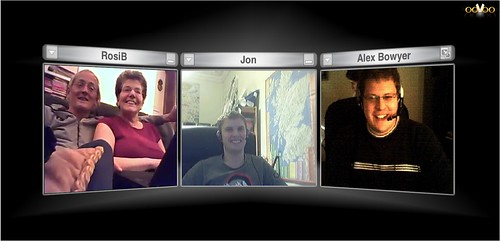
Using ooVoo for three way family webcam chats


I live in Hampshire, my brother lives in Scotland, and my parents live in Northumberland. Not ideal really, but that's the way it's ended up. This generally means we only get to see each other altogether about twice a year - not as often as we'd like. As you may know, my wife and I are moving to Canada next year, even further away - so I decided it was time to do something to make sure we get to see each other often. I don't want to have even less contact due to being overseas!

First we experimented with Windows Live Messenger (MSN), Yahoo Messenger and Skype, which didn't do the job for various reasons - we needed something that would work on Windows XP and Mac OS X, and which would allow more than two participants at a time.

We eventually found the ideal piece of software for having webcam & voice chats with more than two participants. It's a great piece of software called ooVoo. It runs on Mac or PC, is a free 15Mb download, and is very easy to set up.

So now we can have 3 way video-conferences (in fact, ooVoo supports up to six participants) at a set time every week - which will make the distances seem a lot less. It's so much more than just a phone conversation, it is much more like seeing your family in person. Problem solved! I love it when technology actually improves your life! If your family or friends are far away, I recommend you give it a go.


Read more...

Tuesday, 2 December 2008

Speed up Windows Boot Time with StartupDelayer

Maybe you still need those apps, but do you need them right away?

I recently read this article about how US employees are suing their employers over lost hours due to the time it takes Windows to boot. It's also struck me I really should do something about my Thinkpad's Windows XP boot time. It typically takes me the the best part of 15 minutes from power on to "ready to work" state. So it was good news when I came across a piece of software that can really help me gain some of that time back each day!

Some of the delay is due to the so-called "quick launch" applications that the likes of Adobe, RealPlayer and QuickTime install without asking. Many of these can be shut off but there are many drivers, applications and Windows services which are less obvious and think they need to load after Windows boots: anti-virus programs, Thinkpad drivers for Touchpad, TrackPoint etc, various corporate spyware apps my company makes me install, not to mention the applications I do need to use now and then - such as Messenger, printer drivers, Nokia phone software, Bluetooth support etc.

There are programs that let you optimize your system by removing/disabling some of these. A good write up of this is on Lifehacker here. You do need to make extensive use of Google to work out what a given EXE or DLL actually does. I see that they have improved this a bit in Windows Vista which provides more information on process names in its task list.

One of the problems with this approach is that often you do need some of these things to load - just not all together at the beginning. It's this "big hit" of 15-30 small apps all trying to load at once that renders your machine unusable when you just want to quickly check your calendar, email or a webpage. (i've actually arrived at work at 9.45 for a 10am meeting and still been late because of the time it's taken to boot my laptop and get into my calendar!)

The problem comes that (much to my disappointment) I do actually need a lot of this crud to run just to make things work (yet another reason why I prefer the Mac!). However I'd still like to avoid that initial delay that stops me starting working straight away. R2 Studios have come up with an ingenious solution - StartupDelayer. Essentially this is a program that lists your startup applications and lets you disable any of the items you want to - but more importantly, to specify a delay for each one - so that you can stagger your boot sequence and work away happily without overloading your processor. Here is what it looks like:

Screenshot of StartupDelayer

I've staggered the applications that still need to load over a 15 minute period, with things like TrackPad support and Access Connections loading straight away, and the items I'm least likely to need loading last of all. I activated the Delayer and restarted and the difference was noticeable - I can now get into the Web (thanks to Chrome's fast startup) well inside of 5 minutes. Lovely!

I'm not normally a fan of downloading extra applications to enhance Windows but this is one worth using. I recommend you give it a try!

Update: Well, it's name and shame time; I've found that the following applications add themselves back into the Windows Startup List and refuse to be controlled by StartupDelayer - meaning they will insist on booting up straight away and causing a CPU spike at boot time:

  • c4ebreg (corporate spyware thingy, can't be disabled or delayed)
  • ISAMtray (corporate spyware thingy, can't be disabled or delayed)
  • ISSI EZUpdate Service (internal company installer thingy)
  • BMMGAG (ThinkPad Power Monitoring, seems to be needed)
  • pmonmh (IBM My Help, seems to be needed although I'm tempted to get rid of it)
  • msnmsgr (Windows Live Messenger, fortunately auto-start can be disabled in Messenger preferences)
  • ISUSPM (something to do with InstallShield, can't be disabled or delayed)
Fortunately, if you're reading this, most of those won't apply to you (unless you work for the same company!). Oh well, at least things are better - now if I only I could get rid of these corporate monitoring applications! Any tips on getting rid of (or at least delaying) these last few are welcome!

Author's notes: Please excuse the strange vertical line down the middle of the page - I can't figure out where it's coming from or why it suddenly appeared - I suspect Blogger may have changed their template and since I customized it for a wider page, I'll need to go deep diving into the template HTML. Oh what a joy! Any tips are very welcome. Secondly, I just wanted to say that I can't believe I've been back a month from India now - I have a few blog post ideas kicking around so will aim to get them down over the next couple of weeks! As ever, thanks for reading.


Read more...

Sunday, 20 July 2008

How to write Java software for your mobile phone

How to write a "Hello World" program using J2ME

So, I've just managed to get a Hello World program running on my mobile phone. Thought I would share this as a simple set of steps, since it wasn't obvious. To figure this out I referred to this guide plus the Sun Wireless Toolkit manual which you will find in {install-dir}/docs/UserGuide-html/index.html after install.

OK, without further ado, here are the steps. This is just one way of doing it!

  1. Install a current Java J2SE Development Kit (such as JDK 6 update 7 (or later) from Sun
  2. Install the Sun Java Wireless Toolkit for CLDC
  3. Run the toolkit ({install-dir}/bin/ktoolbar.exe on Windows - shortcut in Start Menu)
  4. This is the build/compile environment for J2ME apps. Note that bizarrely, it has no text editor, so you need to use your own text editor to create/edit the code, then use this tool to compile/build
  5. Click the "New Project" button
  6. Enter HelloWorld as the Project Name
  7. Enter Hello as the MIDlet Class Name (corresponds to Hello.java, your main java file)
  8. Click OK
  9. Choose your target platform (to keep things simple, use MIDP 1.0 for now)
  10. Make note of the text in the main toolkit window ,this tells you where to put your code and other files. Mine said "Place Java source files in 'C:\Documents and Settings\Administrator\j2mewtk\2.5.2\apps\HelloWorld\src'"
  11. Using your text editor of choice, open two new text files in that directory, called Hello.java and HelloCanvas.java. The code for these can be found here. Copy and paste the code into each, then save them.
  12. Go back to the tool, and press Build. This compiles your code. Assuming no errors, continue to the next step.
  13. Click Run, this will launch your program in a mobile phone emulator. It should work.
  14. Now, to transfer it to your real phone, you need to generate two files - a .jar file (Java archive) and a .jad file (Java application descriptor). Go to the Project menu, Package submenu, select "Create Package"
  15. You can now navigate to 'C:\Documents and Settings\Administrator\j2mewtk\2.5.2\apps\HelloWorld\bin\' and see your generated JAR and JAD files
  16. Now use your phone's file transfer software to connect to your phone (via Bluetooth, USB etc). I used Nokia NSeries PC Suite from www.nseries.com. Transfer the JAR file and the JAD file.
  17. If your phone does not pick up the app as installable automatically, navigate to the JAD file on your phone and execute it, this will install the app.
  18. You should now find an installed icon for your HelloWorld program in your phone menu (on N95 this is in the Applications sub menu). Click the icon, and voila! Your first mobile phone app!
So, now you can write HelloWorld, in theory you can write any mobile phone application you like - the rest is just programming!!


Read more...

Wednesday, 9 July 2008

Photo sharing dilemma

Random musing for today: I can't decide the best way to share my photos online.
Currently I sometimes use Flickr and sometimes Facebook, and have also considered setting up my own instance of Gallery or some other customisable self hosted solution. Ideally I would like to settle upon just one solution to avoid duplication - But it seems like each option has some advantages and some disadvantages.

Flickr
Advantages:

  • Effectively unlimited storage, because the allocation is "amount uploaded per month" not in total. This can be increased by upgrading to pro, which is possibly worth the cost
  • Stores much higher resolution images (even higher if you upgrade to pro)
  • People can download images at different resolutions
  • Has some degree of privacy controls - can choose if any given photo or album is viewable by all, or friends only, or family only, or friends and family.
Disadvantages:
  • No way to download a whole album at once
  • Typically friends/family won't already be on Flickr - so will have to sign up. Although, you can share a particular album with non Flickr members (with no privacy controls)
  • Privacy controls quite coarse grained (can't distinguish between close friends, work colleagues, different friend groups)
  • Can't customise the site appearance

Facebook

Advantages:
  • Because of the social network mantra "go where your friends are" it turns out Facebook is the best way for me to share some photos and know that many of my friends have a good chance of seeing them. There's something nice about just putting photos out there and knowing they will show up in friend's homepages ("Alex has added new photos") and they can choose to look more or not - rather than me having to purposefully send out links by email which seems a little more intrusive
  • People tagging. It's really nice being able to tag people in photos so that those photos show up to that person, and other people who know that person, without them specifically seeking them out. Again this seems a great way to bring an audience to your photos (the people/social ones anyway)
  • Fine grained privacy controls, can limit to particular groups of contacts or combinations of groups.
  • Some chance of people discovering your photos via flick friend feeds, flickr facebook plugin, but not to same degree as with Facebook
  • Doesn't seem to have an upload quota (although only 60 photos allowed per album)
Disadvantages:
  • Only a low resolution stored or viewable
  • Can download but not high enough quality to print - seems more for fun/browsing.
  • Can only give the full tagged/organised experience to other people signed up on Facebook (Although, you can share a particular album with non Facebook members (with no privacy controls)
  • Can't download a whole album
  • Can't customise the site appearance
  • No people tagging
Gallery & custom built photo apps
Advantages:
  • fully customisable site appearance
  • can download whole albums
  • can store & download hi-res photos
  • storage only limited by your web hosting capacity
  • full fine grained privacy controls
Disadvantages:
  • need your own web hosting (not a problem for me as I have some - but space may be more of an issue)
  • no chance of people discovering your photos - they have to come to your site - which means you have to send out links
  • no people tagging
  • to get the full grained privacy controls you need everyone to register for your site - and then recreate your entire social network and the different groups for different levels of privacy, within your gallery app - some people probably won't bother, and this is a lot of work for everyone involved. Not sure I want to put my friends through that.

The ideal system:
  • Would integrate fully with existing social networks, to allow friends to discover the photos and to make privacy controls be able to use existing identities & groups
  • Would have fine grained privacy settings so I can restrict with detail who can see what photos
  • Would allow people tagging to help bring the photos to people's attention, like Facebook
  • Would have storage per month, like Flickr, rather than a finite cap
  • Would allow high res downloads (like Flickr, Gallery)
  • Would allow full album downloads (like Gallery)
  • I would be willing to pay a small fee for such a system, if it existed. I don't think it does.
I'd be interested to hear other people's thoughts on this problem. What system do you use? How do you get around problems I've mentioned? Is there another solution out there that would be closer to the ideal I have described?


Read more...

Tuesday, 8 July 2008

When to use something other than Google

When Google invented PageRank, they became the best search engine on the Internet, a default place to find anything online - and I like many other people changed my search habits from trying multiple engines (AltaVista, Ask Jeeves, Webcrawler, Lycos etc) to just one. What I am starting to find now though, is that while Google is still the best for straightforward keyword based searches, there are a few specific types of thing where Google is not my first point of call:

"How To" videos

I have found that VideoJug is an excellent place to find really good quality instructional videos. Recently my wife and I held an Egyptian-themed murder mystery party and I used VideoJug to find this excellent video on how to tie a turban. Just today, I was looking for something I could make out of paper as part of my present to my wife for our first ("Paper") wedding anniversary and found just what I was looking for.

General overviews of a topic

If there is a topic, person or area which I know nothing apart, I have found that it is far quicker to go directly to Wikipedia than to bother searching Google. Wikipedia is excellent for giving an overview of a topic. For example I found myself using this yesterday when I wanted not specific information, but just a quick general high level overview of what Java Web Start is, and how it works.

I also use the Googlepedia Firefox add on so that when I do a search, the page is split and I get both Google and Wikipedia results. This is not only very useful, but also due to the "I'm feeling lucky" effect I sometimes learn some weird and seemingly unconnected things on the right hand side of the page when I am not looking for a wikipedia type topic.

Movie cast information


There's no competition - if I have any wonderings about a film "who is that actor? What have I seen him in before" I cut out google and go straight to IMDb, the Internet Movie Database, which has the best film information anywhere online.

Checking out email forwards and suspicious facebook FunWall posts

Whenever anyone sends me any "heartfelt true stories" or anecdotes attributed to a particular famous person, I always get the urge to find out whether they are true or not. One way is to put a key phrase into Google and add the word "hoax", but an even better way is to go straight to Snopes, the Urban Legends Reference Pages, which is almost certain to have encountered your email urban legend before and give you the lowdown on what truth, if any, is behind it.

Blog searching and "opinion" finding

If you specifically want to find the opinions of Joe Public, general ordinary people rather than journalists and media outlets, I have found that Technorati's blog search is by far the best way to pick up only results from Blogs.

In summary

I guess what I'm saying is, if you know what "type" of information you need, you can sometimes speed up your search by cutting out Google (where the results will not be in a consistent order) and go straight to the best quality source of that type of information. Maybe this is obvious but I just caught myself doing it a lot recently so I thought I would share!

I am sure there are others I have forgotten, these are a few off the top of my head. How about you, what places do you shun Google for when you want certain types of information ? Add your tips to the comments and we'll build up a list of really useful sites!


Read more...

Monday, 7 July 2008

Gmail misbehaving in Firefox 3 on Leopard

How to get back your lost GMail features on Firefox 3 on OS X

Having become more and more aware of how slow and bloated Firefox 2 had become, and having downloaded Firefox 3 on my Windows laptop at work and noticed a definite improvement in load time and CPU usage, I decided to follow suit and install Firefox 3 on my Mac Mini at home which is running OS X Leopard.

It worked fine for a while, then today something strange happened - I clicked my usual GMail link on the toolbar and found myself presented with the HTML only view of GMail and a big flash saying "For a better Google Mail experience use a fully supported browser".. wtf? Why would GMail not support Firefox 3?

I checked the provided link and confirmed that yes, GMail does support all versions of Firefox after 2.0. I clicked the "Mac" link on that very page and was told by Firefox's download page that "Mac OS 9 and earlier versions not supported". Since that page detects your system to give you the appropriate link, this suggests something is reporting my system as pre-OS X, and that is stopping Firefox and GMail from thinking they can support my operating system... How very bizarre.

I did some googling and while I did not solve the problem, I quickly found a workaround... all I needed to do was change my GMail links to point to:

https://mail.google.com/mail/?nocheckbrowser

which is a link through to GMail which skips the browser check. Using this link, GMail and other apps work fine. Which is a relief, as I thought I might have to revert back to using BonEcho (OS X custom builds of Firefox 2). I did download and try Minefield (OS X custom build of Firefox 3) but got the same error message saying I had an old version of OS X. So I've not seen a need to switch to Minefield yet.

Update 9 July: Just noticed a similar problem with Google Docs. In this case, the URL has to be changed to http://docs.google.com/?browserok=true. Very strange that these Google apps would suddenly break. I hope Google fix this! (or if it's something at my end, hope I can work out what!)

Update 14 July: I just got a similar message (unsupported browser) from Yahoo when using Flickr.. so it must be something in Leopard rather than anything on Google servers.

Update 8 Jan 09: This problem has continued to resurface. Google Docs for example does not seem to have any "don't check my browser" option. Determined to get to the bottom of this, I dug deeper. One thing I found is that on my Firefox About window it was reporting the browser as "undefined GoogleToolbarBB". This can be confirmed by typing the following into the address bar:

javascript:prompt("My userAgent is:", navigator.userAgent)

This led me to conclude two things - firstly that the problem relates to my browser misreporting itself, and maybe that it's something to do with a Google toolbar (which is odd, as I don't have one installed - but maybe it relates to the built in Google search box?). Anyway, pursuing this line of thought a colleague pointed me to the Firefox User Agent Switcher add-on, which allows you to change how your browser reports itself. I installed this and then found some correct settings for Firefox 3 on Leopard. I created a new profile in the add-on and set it up as follows:


(The rest of the line that is too long is just an o to make Gecko)

The good news is the problems seem to have stopped! So I have a much better workaround although I never really found the cause. I suspect a clean install without bring forward my profiles, settings, add-ons etc might solve the problem - but this is not something I want to try so I am happy with this workaround for now!

No doubt this problem will come and bite me again, so If anyone has any further ideas please let me know! But at least I have a workaround.

Alternative Google Bookmarks Add-On for Firefox 3 on OS X

While on the subject of Firefox 3 - I have found that almost all the add-ons I use are now available for Firefox 3, although for some reason the Google Bookmarks for Firefox add-on, which adds a handy menu to firefox to add & retrieve your bookmarks and have them the same on all your computers, is no longer available on the OS X version of Firefox 3 (although it is available on Windows).

This risked being a show stopper for me as that is my main way of using Bookmarks. Fortunately, I have found an equivalent add-on called Deng Google Bookmarks which does pretty much the same thing (although it looks slightly different).
Hopefully the Google Bookmarks for Firefox add-on will be available for Mac in future - but Deng does a good job in the meantime.

How to improve your GMail interface (and other Google tools) by enabling trial new features

Thought this might be a good opportunity to share a couple of other Google related tips.. Make sure you go into your GMail settings and set your language to US English (not UK English or any other language). This is because new features always get added first to the US English version - for example the RSS feed "Clips" along the top of your messages was added first on the US English version. More on the differences between UK & US versions here.

You can also enable even more features by adding GMail Labs to your account (article at Lifehacker).

You can do a similar thing in iGoogle to enable an experimental new interface, as detailed at Lifehacker here.

There are even experimental features for Google search itself!


Read more...